
Table of Contents
Introduction
Taking a screenshot is one of the most useful features on any smartphone. Whether you want to save a conversation, capture an important moment, or share information quickly, Android devices make it easy. From simple button combinations to advanced scrolling screenshots, Android offers multiple ways to capture your screen efficiently.
In this article, we will explore everything you need to know about Android screenshots, including methods, features, tools, and tips.
What is an Android Screenshot?
An Android screenshot is a digital image that captures exactly what is displayed on your screen at a particular moment. It acts like a snapshot of your phone display and can be saved, edited, or shared instantly.
Common Methods to Take a Screenshot
1. Using Hardware Buttons
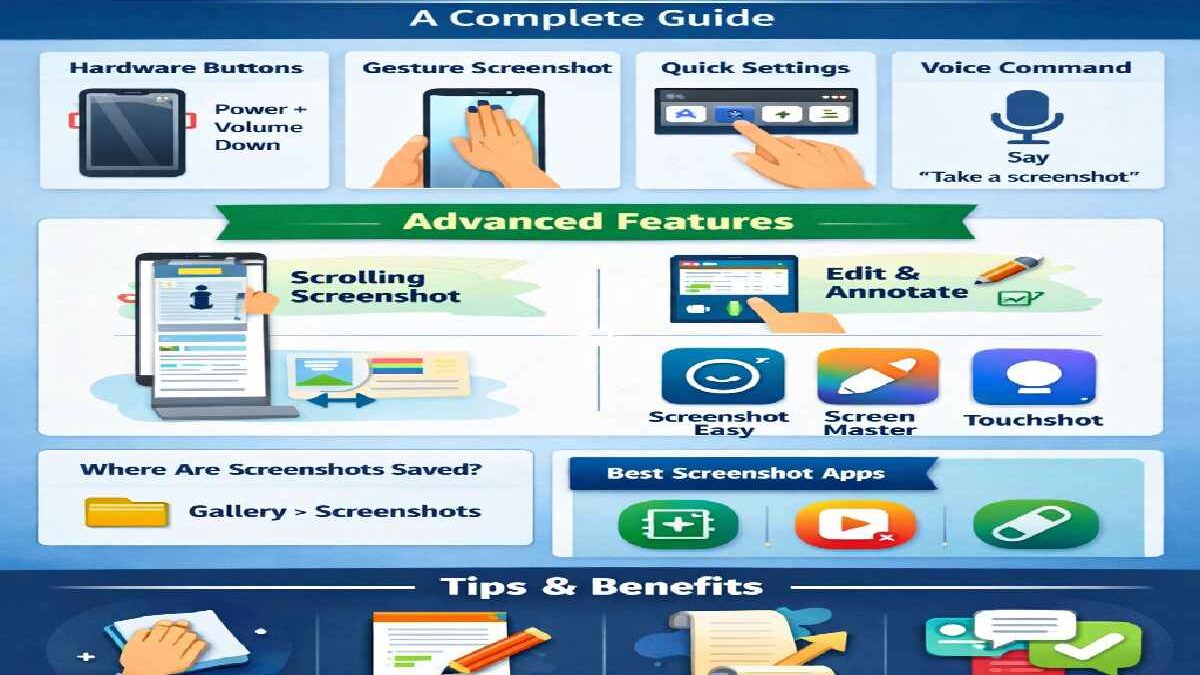
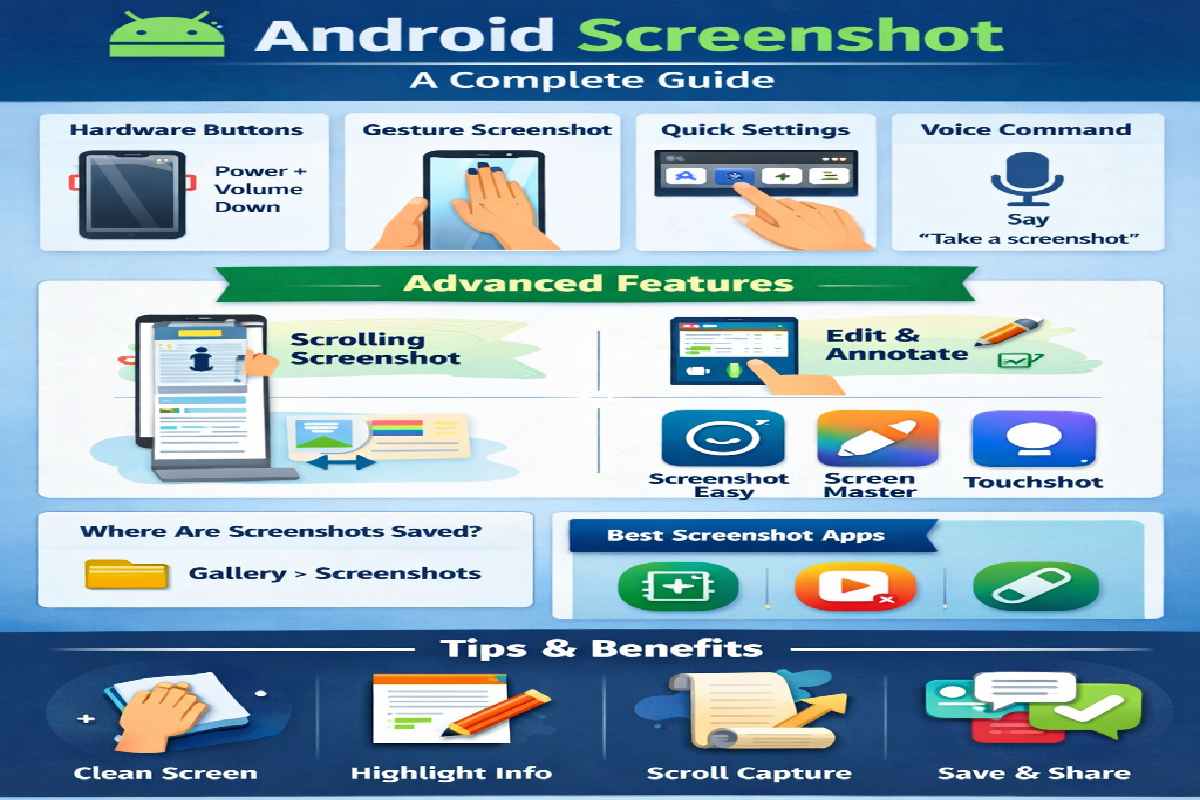
The most common way to take a screenshot is by pressing a combination of physical buttons.
| Method | Steps |
| Power + Volume Down | Press both buttons at the same time |
| Power + Home (older phones) | Press both buttons together |
2. Gesture-Based Screenshot
Modern Android phones support gestures for screenshots.
| Gesture Type | Description |
| Three-finger swipe | Swipe down using three fingers |
| Palm swipe (Samsung) | Swipe the edge of your hand across the screen |
3. Using Quick Settings
You can also take screenshots from the notification panel.
| Step | Action |
| 1 | Swipe down the notification panel |
| 2 | Tap “Screenshot” icon |
| 3 | Screen is captured instantly |
4. Voice Assistant Screenshot
You can use voice commands via Google Assistant.
Example:
Say: “Take a screenshot”
Advanced Screenshot Features
1. Scrolling Screenshot
This feature allows you to capture long pages like web articles or chats.
| Feature | Benefit |
| Scroll capture | Capture full webpage |
| Extended screenshot | Save long conversations |
2. Screenshot Editing Tools
After taking a screenshot, Android provides built-in editing options:
| Tool | Use |
| Crop | Remove unwanted parts |
| Draw | Highlight important info |
| Text | Add notes |
| Blur | Hide sensitive content |
3. Screenshot Sharing
You can instantly share screenshots using apps like:
- Telegram
Where Are Screenshots Saved?
Screenshots are automatically saved in your phone storage.
| Location | Path |
| Default Folder | Gallery → Screenshots |
| File Manager | Internal Storage → Pictures → Screenshots |
Best Screenshot Apps for Android
If you need more features, you can use third-party apps:
| App Name | Features |
| Screenshot Easy | Quick capture & editing |
| Screen Master | Annotation tools |
| Touchshot | Floating button capture |
Troubleshooting Screenshot Issues
Sometimes screenshots may not work properly. Here are solutions:
| Problem | Solution |
| Buttons not working | Restart device |
| Screenshot blocked | Some apps restrict capture |
| Storage full | Free up space |
Tips for Better Screenshots
- Clean your screen before capturing
- Use editing tools to highlight important parts
- Use scrolling screenshots for long content
- Avoid capturing sensitive information
Advantages of Android Screenshots
| Advantage | Description |
| Easy sharing | Share instantly |
| Saves information | No need to write manually |
| Useful for learning | Capture study materials |
| Evidence storage | Save receipts or chats |
Conclusion
Android screenshots are a powerful and easy-to-use feature that helps users capture, save, and share information quickly. With multiple methods like button combinations, gestures, and voice commands, taking screenshots has become more convenient than ever.
Whether you are a student, professional, or casual user, mastering screenshots can improve your productivity and digital experience.
FAQs
1. How do I take a screenshot on Android?
Press the Power and Volume Down buttons together.
2. Why can’t I take screenshots in some apps?
Some apps block screenshots for privacy and security reasons.
3. Can I edit screenshots on Android?
Yes, Android provides built-in editing tools after capturing.
4. What is a scrolling screenshot?
It allows you to capture long pages beyond one screen.
5. Are screenshots saved automatically?
Yes, they are saved in the Gallery under the Screenshots folder.
